Configuración de almacenamiento
Después de agregar un proveedor de almacenamiento, un proveedor de modelo y un proveedor de incrustación, podemos configurar el almacenamiento
1. Agregar un nuevo almacenamiento
Los almacenamientos se utilizan para integrar proveedores de almacenamiento, modelo e incrustación en Casibase. Puede agregarlos siguiendo estos pasos:
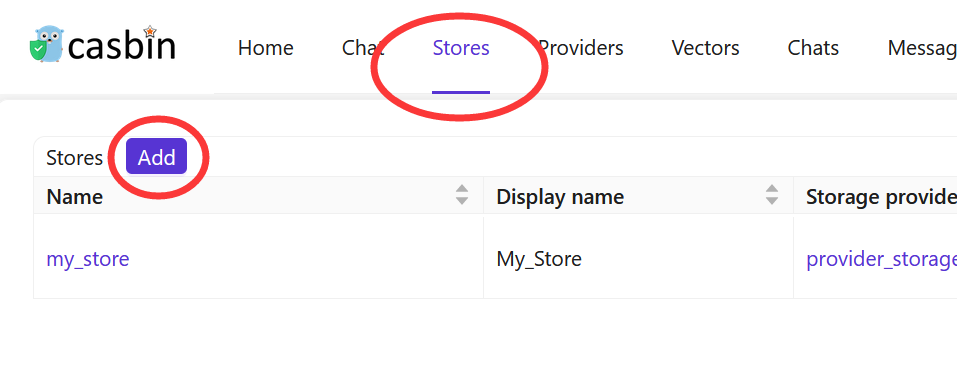
Haga clic en el botón Almacenamientos en la página principal, luego haga clic en el botón Agregar para agregar un almacenamiento.
Completar los detalles del almacenamiento
Complete los detalles del almacenamiento y haga clic en el botón Guardar y salir.
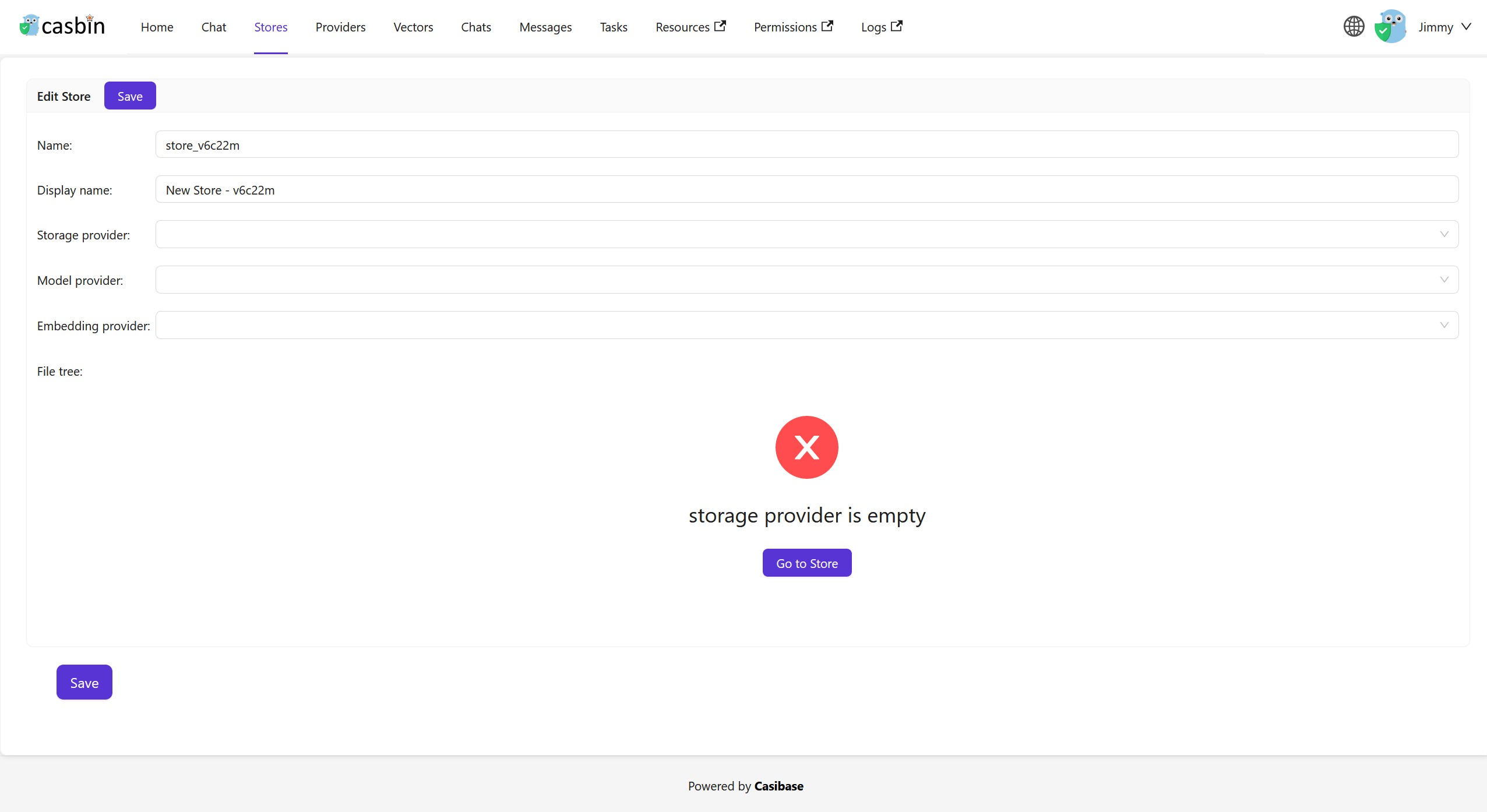
Select the storage provider, model provider, embedding provider, text-to-speech provider and speech-to-text provider you added before.
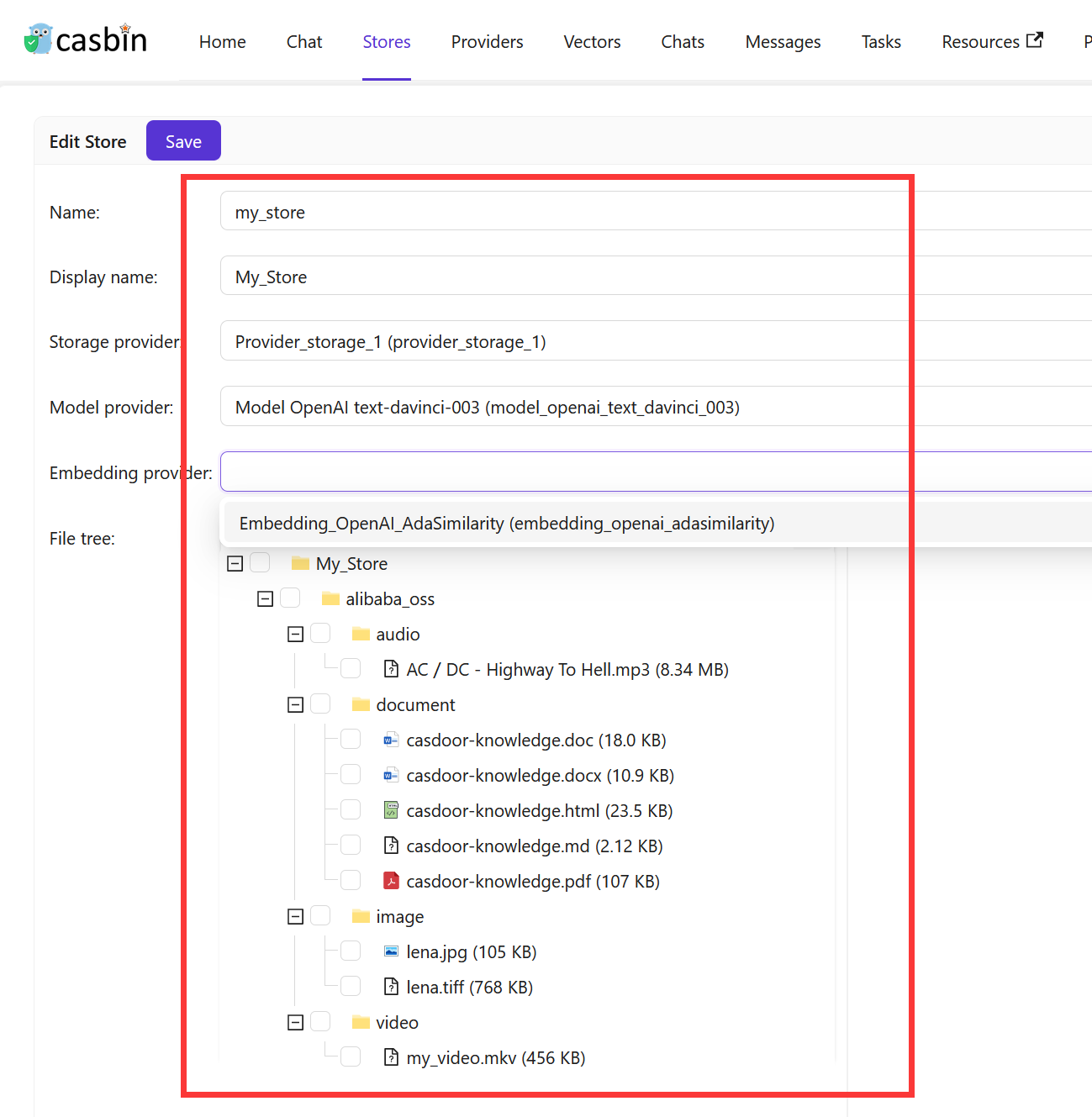
Haga clic en el botón Guardar y salir y regrese a la página de lista de almacenamientos:

The store list shows many columns for AI configurations like model providers, embedding providers, and voice settings. If you're mainly using stores for file management, toggle "Hide chat" at the top of the list to simplify the view and show only the essentials: name, storage provider, and status.
Ahora, puede usar este almacenamiento para almacenar datos de base de conocimiento, convertir texto en vectores y conversar con un chatbot.
When configuring your store, consider adding example questions that appear when users start a new chat. These suggestions help users discover what they can ask and get them started quickly. You can also configure which other stores this one should search through using the Vector stores field - useful when you want one store to pull knowledge from multiple sources.
Vector Stores
Sometimes you need one store to search through knowledge from multiple other stores. For example, you might have separate stores for different topics or departments, but want a main store that can answer questions by searching across all of them. The Vector stores field makes this possible by letting a store use vectors from other stores in addition to its own.
To configure this, navigate to the store edit page and find the Vector stores field. You can select one or more stores from the dropdown list. When you chat with this store, it will automatically search through both its own vectors and the vectors from all the stores you selected. This way, you can create a centralized knowledge hub without duplicating content across multiple stores.
The store always uses its own vectors automatically. You only need to specify additional stores in the Vector stores field when you want to search across multiple knowledge bases.
En la siguiente sección, aprenderemos cómo conversar con un chatbot en Casibase.
2.Store Isolation for Users
Casibase lets you restrict users to specific stores through Casdoor's Homepage field. When a user's Homepage matches a store name, they become bound to that store and work within it exclusively - perfect for multi-tenant setups where teams need separate knowledge bases.
Bound users see their assigned store locked in the top bar selector. They can view and query only that store's data, and API calls to other stores fail with an error. They also cannot add, delete, or rename stores, keeping their workspace stable and isolated.
To bind a user, edit their Casdoor profile and set the Homepage field to the exact store name (case-sensitive). The binding activates on their next login. Users with an empty Homepage or one that doesn't match any store keep full access to all stores, so you can mix restricted and unrestricted users easily.
3.Support Multi-store
El modo multi-almacenamiento ofrece a los usuarios diferentes modelos, sugerencias, etc. para cada almacenamiento diferente.
Habilitar multi-almacenamiento
Primero, debe habilitar el modo multi-almacenamiento en el almacenamiento integrado.
Haga clic en el botón Almacenamientos en la página principal, luego haga clic en el botón store-built-in para acceder al almacenamiento integrado.
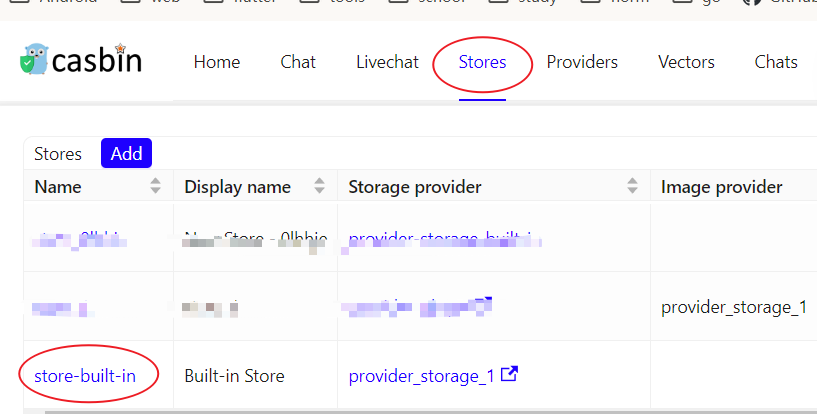
Desplácese hacia abajo para encontrar el campo Almacenamiento seleccionable y márquelo.
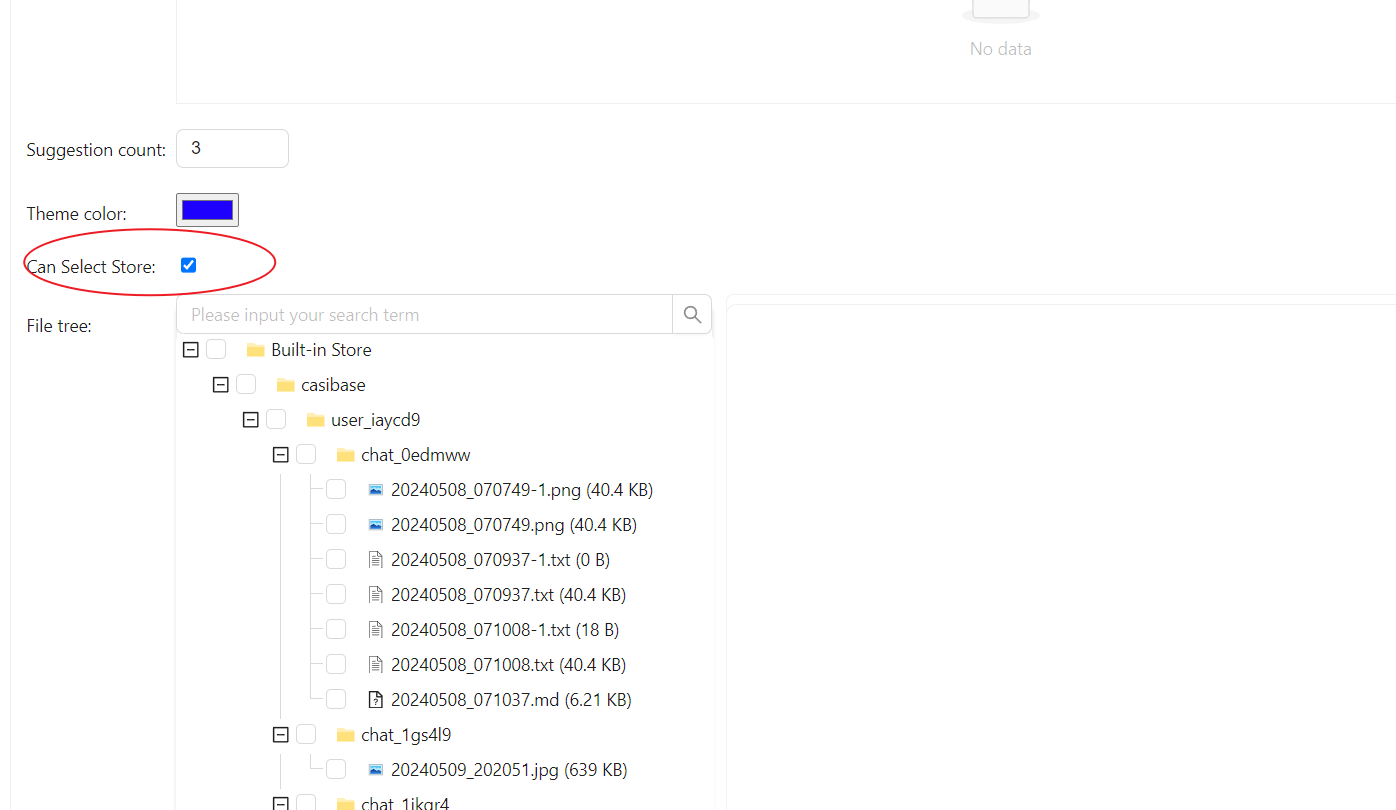
Agregar almacenamientos disponibles
El modo multi-almacenamiento solo proporciona almacenamientos disponibles. Para hacer que un almacenamiento esté disponible, debe configurar su proveedor de almacenamiento, proveedor de modelo y proveedor de incrustación.
Seleccionar un almacenamiento para la conversación
Casibase proporciona un método muy conveniente para seleccionar un almacenamiento.
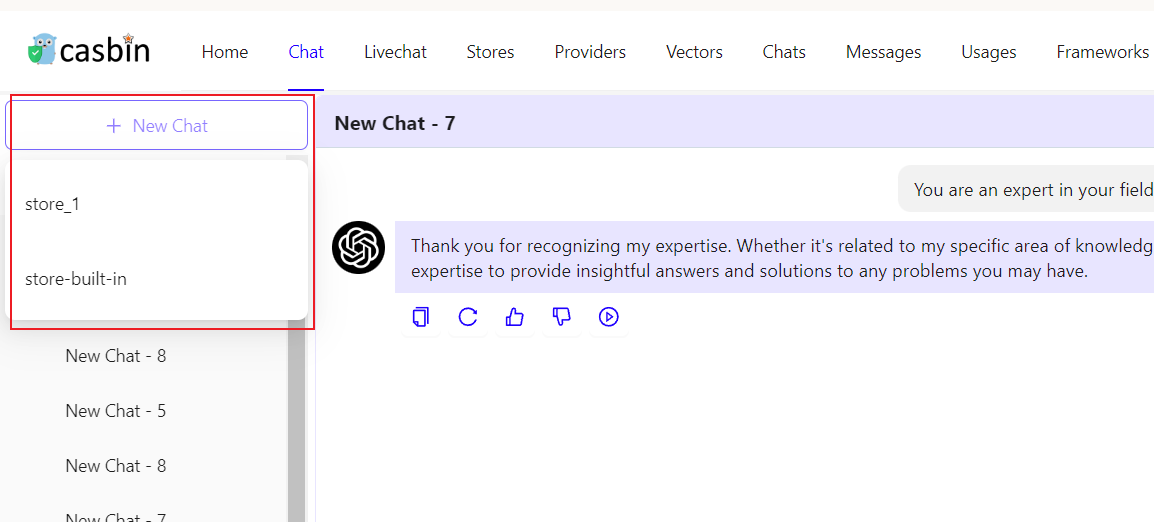
Simplemente coloque el cursor sobre "Nueva conversación", y podrá elegir el almacenamiento que desea usar de la lista que aparece a continuación.
Si hace clic en el botón "Nueva conversación", el sistema le asignará un almacenamiento predeterminado.